
Upload a clear photograph.
Use a JPG, PNG or WebP up to 10 MB and 32 megapixels. Image preparation runs in your browser before upload.
Preview a different wall color in your own room photo. Choose a starting shade, describe the finish and compare the AI edit with your original.
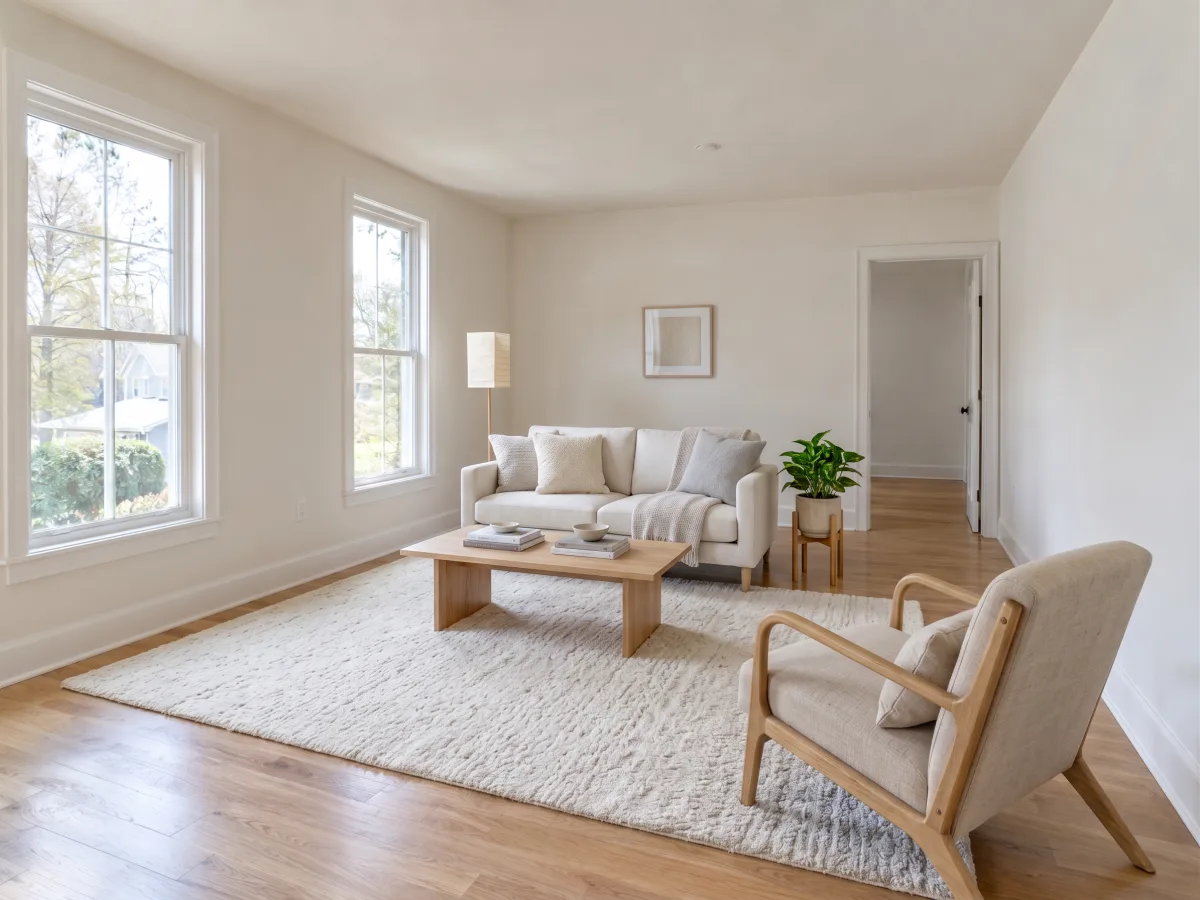
Same room. A different perspective.
BEFORE YOU START
A paint color visualizer lets you upload a room photo and describe the color you want to preview. Describe the surface and color, then compare the original and edited views. The image is a concept, not an exact paint match; check a physical sample before purchasing.
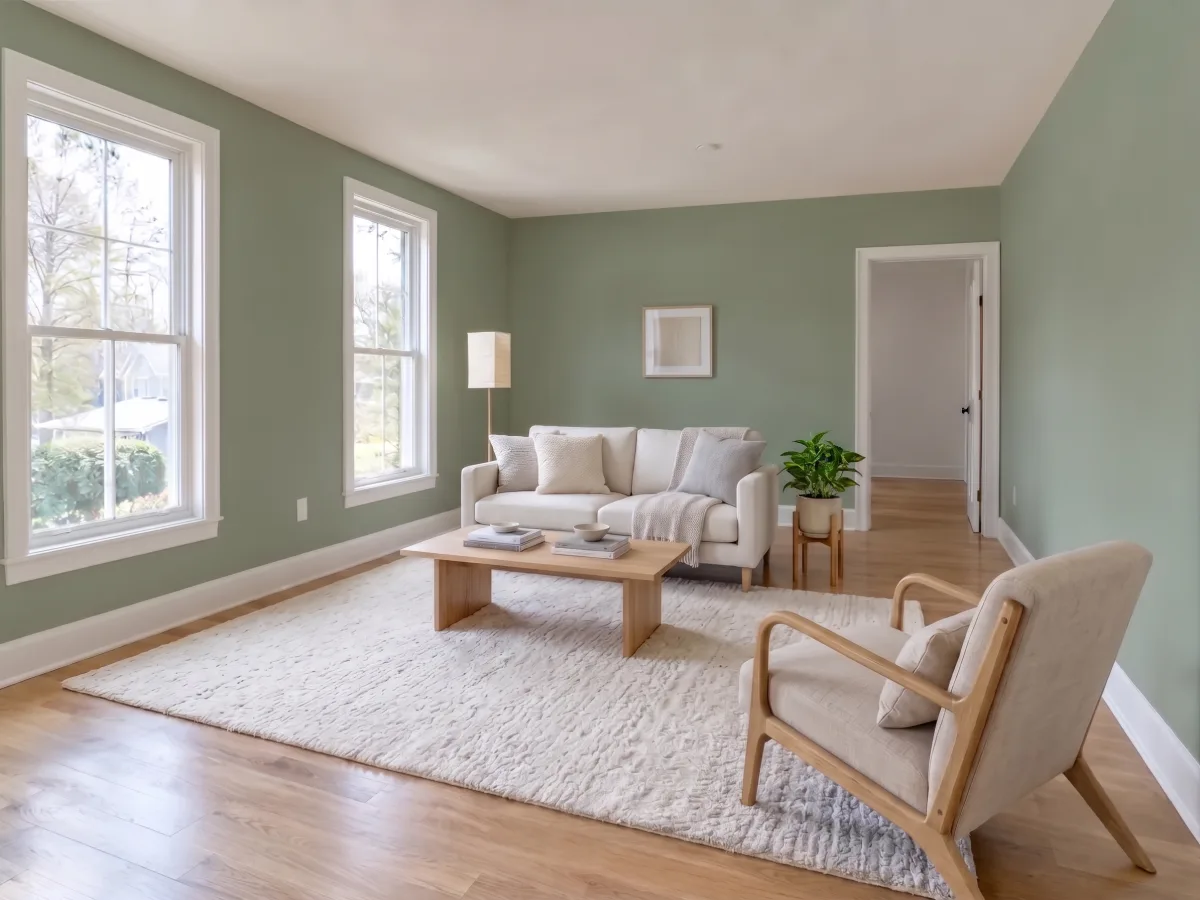
COLOR, IN CONTEXT
A paint color visualizer helps you explore a direction while the furniture, floor and daylight remain the reference. Start with a room photo that shows clear wall edges and describe which surfaces you want to change.
Use everyday color words such as warm white or muted sage. Name the ceiling and trim if you want to keep them unchanged. A single accent wall needs a clear location in your direction.
KEEP THE ORIGINAL CLOSE
After the paint color visualizer finishes, look along the ceiling line, skirting boards, doors and window frames. Check whether reflections or wall art changed, and whether every wall you intended to repaint was selected.
A visual concept, not an exact paint match. Screen colors, lighting and AI edits can differ from a real paint sample. For a property listing, label the altered view as your platform requires and retain the factual original.
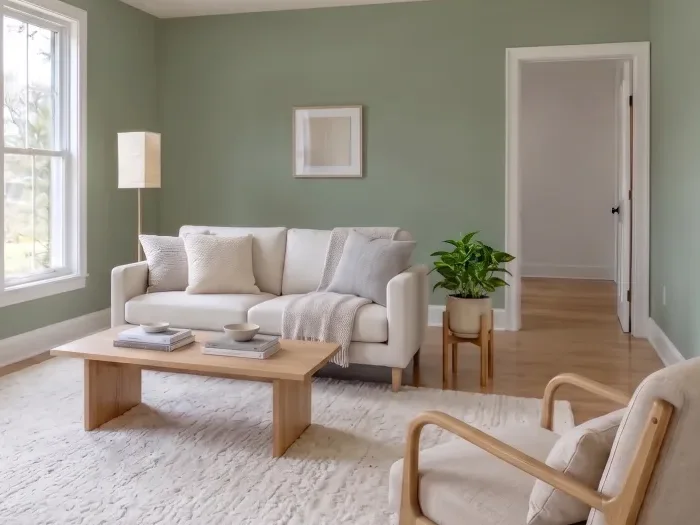
DETAILS MAKE THE DIFFERENCE
Open a useful-sized view and compare the same region in your original. Boundaries around trim, furniture legs and thresholds often reveal an unwanted change that a small thumbnail hides. Check the complete image as well as this detail.
Use a JPG, PNG or WebP up to 10 MB and 32 megapixels. Image preparation runs in your browser before upload.
Choose a preset and edit its direction. The paint color visualizer works on one room photo at a time.
Compare with the original using the divider. Download the PNG when the edit is useful; saving it again uses no extra credit.
Uploads and results are private to your signed-in account or the browser used for your guest trial; they are not added to a public gallery. Use photos you have permission to edit. Your daily free credit is used first. View image plans and packs.
The same paint can look different in daylight, warm lamps and shade. Existing texture, reflections and color casts also affect the edit. A pale wall may show only a subtle change, while a saturated accent can spill onto adjacent surfaces. Compare the trim, ceiling line and window recesses carefully. This visualizer does not simulate a measured lighting environment or calculate how a paint formula will look at different times of day. Use the image to narrow a direction, then compare a physical sample in the actual room.
Yes. Use the room paint visualizer to choose a starting color or describe your own. The AI wall color changer edits your photograph, so check a physical sample before buying paint. Use the divider to check the result against the original before downloading the PNG.
This is an approximate visual concept. A color name or code in your prompt is not a guarantee of an exact paint formula. Screen settings, existing lighting and the AI edit affect what you see. Check physical swatches and test real paint in the room before buying.
Describe the wall using its location, such as the wall behind the sofa, and ask to leave the others unchanged. The AI can still select the wrong area or alter details, so compare the complete photo. There is no manual masking tool in this version.
The wall-edit instruction asks to preserve furniture, flooring, trim, openings and room proportions. AI edits can still change small details. Review edges, mirrors and permanent features; do not use a misleading result as an unedited listing photograph.
Use a sharp, ordinary camera photo showing the surfaces you want to edit. JPG, PNG and WebP are supported up to 10 MB and 32 megapixels; the browser prepares a smaller working image before sending it. Strong motion blur, extreme wide-angle distortion and partly hidden areas make the result harder to judge. A higher pixel count alone does not guarantee a more accurate edit.
Uploads and results are private to your signed-in account or the browser used for your guest trial; they are not added to a public gallery. The images on this page are separate illustrative examples. An accepted task is processed by our configured AI provider and saved for private readback and download. Use photos you have permission to edit and avoid including personal documents or other sensitive information. See the privacy policy for processing details.
Try one image as a guest after verification. The guest trial is limited to one image per browser. A maximum of one new guest per IP or network can start a trial each UTC day. Sign in with Google to claim one image per UTC day across the room-editing tools; it expires at 00:00 UTC and does not roll over. There is no additional signup bonus. Free and paid downloads have no watermark.
Accepted requests continue in the background. Return in the same browser with its site data intact, or use the same signed-in account, to recover the latest task within six hours. The applicable credits are reserved; a delivered image uses them and a confirmed failure returns them. Do not resubmit a request just because the connection drops.